AetherSX2 For PC Complete Guide to PS2 Gaming on Windows
AetherSX2 is a popular PS2 emulator designed to bring classic PlayStation 2 games to modern devices. While its original focus is Android, PC users can run the Android version through an emulator such as MEmu. This gives you a convenient way to play PS2 titles with a keyboard, controller, improved resolution, and customizable settings.
AetherSX2 PC Latest Version
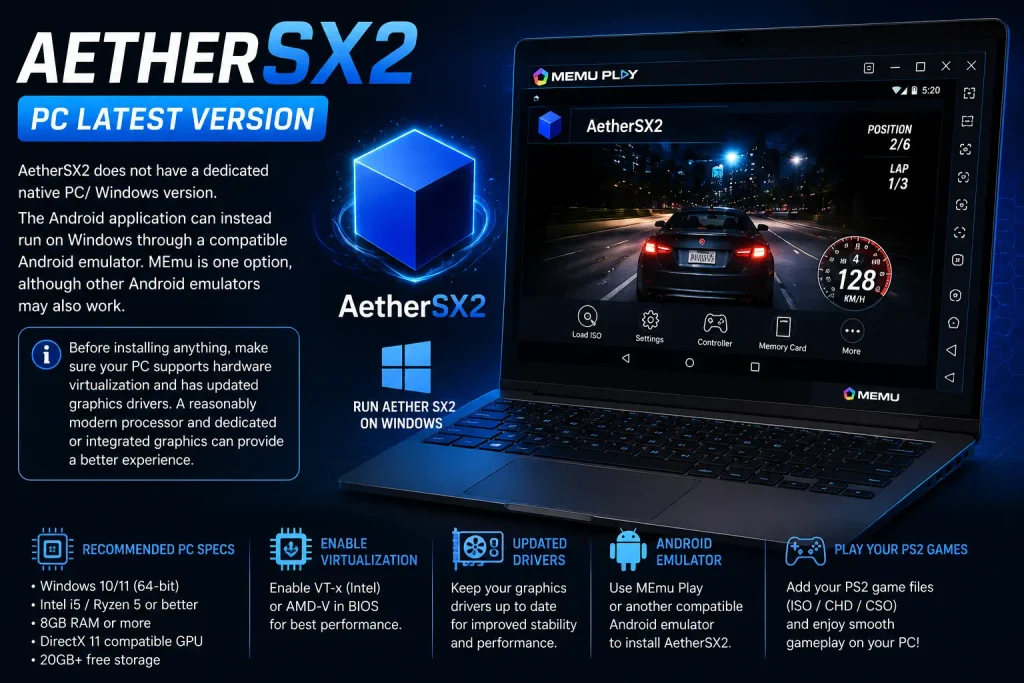
AetherSX2 does not have a dedicated native PC/ Windows version. The Android application can instead run on Windows through a compatible Android emulator. MEmu is one option, although other Android emulators may also work.
Before installing anything, make sure your PC supports hardware virtualization and has updated graphics drivers. A reasonably modern processor and dedicated or integrated graphics can provide a better experience.
Why Use AetherSX2 on PC?
Playing AetherSX2 on a larger screen has several advantages. You get more room for controls, better viewing comfort, and the option to connect a full-size game controller.
The main reasons to use AetherSX2 on PC include:
- Larger display: Enjoy PS2 games on a monitor instead of a small phone screen.
- Controller support: Connect a compatible USB or Bluetooth controller.
- Custom controls: Map buttons according to your preferred layout.
- Resolution options: Increase internal resolution when your hardware allows it.
- Save states: Quickly save and restore gameplay from supported emulator functions.
- Better cooling: Desktop PCs can maintain performance more easily during longer sessions.
How to Install AetherSX2 on PC
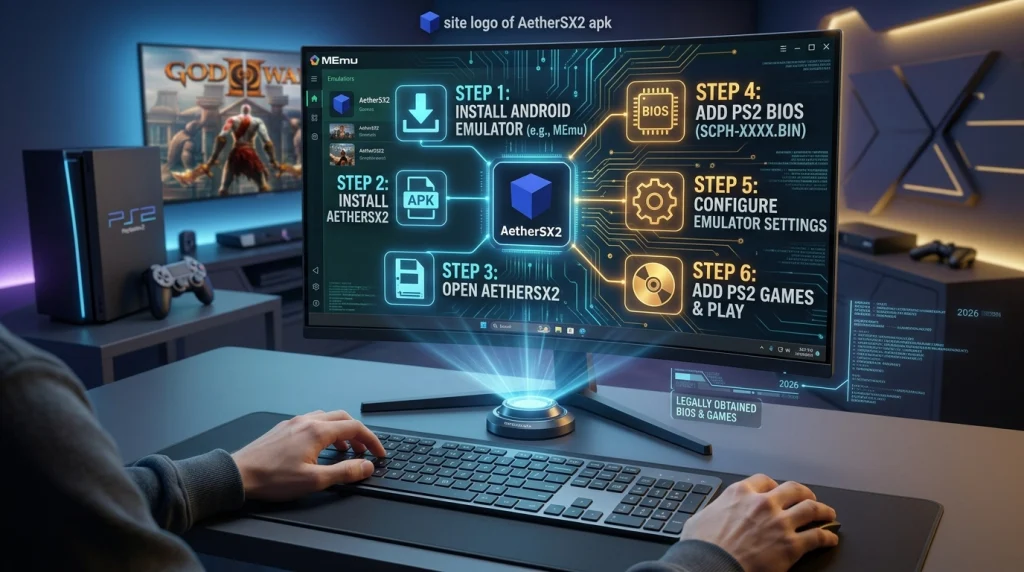
Because AetherSX2 is an Android application, you need an Android emulator to run it on Windows.
Step 1: Install an Android Emulator
Download and install a reputable Android emulator that supports the applications and Android version required by AetherSX2.
MEmu is one possible choice. After installation, open the emulator and complete its initial setup.
Step 2: Install AetherSX2
Obtain the AetherSX2 APK from a source you trust. Open the APK with your Android emulator and install it.
If the emulator does not automatically open APK files, use its built-in APK installation option.
Step 3: Open AetherSX2
Launch AetherSX2 from the emulator’s Android home screen. The first startup may take a little longer while the application prepares its folders and settings.
Step 4: Add Your PS2 BIOS
A PS2 BIOS is required for normal emulation. Use a BIOS dumped from a PS2 console that you own and follow the emulator’s instructions for importing it.
Avoid downloading BIOS files from unknown websites because they may be unauthorized or unsafe.
Step 5: Configure the Emulator
Open the settings and adjust graphics, audio, controls, and performance options. Start with the default settings before making major changes.
Step 6: Add Your Game
Use your own legally obtained PS2 game dump in a supported format. Add the folder containing your game files to AetherSX2’s game directory.
Once the game appears in the library, select it to start playing.
You can also download AetherSX2 v2.0 for better experience.
Features of AetherSX2 on PC
AetherSX2 provides several useful options that can make PS2 emulation more comfortable on a computer.
High Game Compatibility
AetherSX2 supports a broad selection of PlayStation 2 games. However, compatibility and performance can vary between titles and hardware.
Improved Display
Running PS2 games through an emulator allows you to adjust the internal rendering resolution. A capable PC can therefore produce a cleaner image than the original console output.
Save States
Save states let you preserve the current emulator state and return to it later. They can be useful when testing settings or playing sections with limited in-game save opportunities.
Customizable Controls
AetherSX2 supports configurable controls, making it possible to map PS2 buttons to your preferred keyboard or controller layout.
Performance Settings
The emulator includes several graphics and system options that can affect performance. Adjusting resolution, rendering options, and other settings can help balance image quality with frame rate.
Running AetherSX23 Through MEmu
MEmu can create an Android environment on Windows where you can install and run AetherSX2.
After installing MEmu, open its Android environment and install the AetherSX2 APK. You can then configure the emulator’s controls and connect a controller if supported.
Keep in mind that you are effectively using two layers of emulation: MEmu runs Android on Windows, while AetherSX2 emulates the PS2 inside Android. This can add overhead compared with using a native PC PS2 emulator.
If performance is poor, lowering AetherSX2’s internal resolution and reducing unnecessary background applications can help.
AetherSX2 PS2 Game Setup Guide
Setting up a PS2 game involves more than simply opening an ISO file. You should organize your game files first and make sure they come from your own legally obtained copies.
Step 1: Prepare Your Game File
Create a dedicated folder for your PS2 game dumps. Keep files organized so AetherSX2 can scan them easily.
Step 2: Open AetherSX2
Launch AetherSX2 inside your Android emulator and open the game directory settings.
Step 3: Select the Game Folder
Point AetherSX2 toward the folder containing your game files. Allow the application to scan the directory.
Step 4: Select Your Game
When the game appears in the library, tap or click its title to launch it.
Step 5: Adjust Settings
If the game runs smoothly, you can gradually increase the rendering resolution or enable other enhancements.
If you notice stuttering, return to the default settings and make one adjustment at a time.
Best Settings for Better Performance
There is no single configuration that works perfectly for every PS2 game. Start with conservative settings and increase quality gradually.
For weaker PCs, try these approaches:
- Use the native or a modest internal resolution.
- Close unnecessary Windows applications.
- Avoid running several Android applications simultaneously.
- Keep graphics drivers updated.
- Enable hardware virtualization when supported.
- Use a controller instead of complex keyboard mappings.
- Reduce demanding graphical enhancements if games stutter.
AetherSX2 Troubleshooting Guide
Game Is Not Loading
First, check that your BIOS is correctly configured. Then verify that your game file is supported and was created correctly from your own disc.
If other games work normally, the problem may be specific to that game.
Game Runs Slowly
Lower the internal rendering resolution first. If the problem continues, close background applications and check whether your Android emulator is using the appropriate performance settings.
Avoid changing many settings at once because it becomes difficult to identify what caused the improvement or problem.
AetherSX2 Freezes
Restart AetherSX2 and check whether the problem happens with every game or only one title. Updating graphics drivers and restarting the Android emulator can also help.
If the issue continues, restore the emulator settings to their defaults and test again.
Controller Is Not Working
Open the controller settings and check whether the input device is detected. Reassign the buttons if necessary.
For Bluetooth controllers, confirm that Windows and the Android emulator both recognize the device.
Black Screen or Graphical Problems
Try changing the graphics renderer or reducing the internal resolution. Some games may behave differently with different rendering options.
If the issue affects only one title, search for a game-specific configuration rather than changing your entire setup.
AetherSX2 PC vs Native PS2 Emulators
AetherSX2 and native PS2 emulators offer different ways to play PlayStation 2 games on a computer. AetherSX2 is designed for Android, so PC users need an Android emulator to run it on Windows. Native options such as PCSX2 run directly on the PC, making them more straightforward for Windows users. The comparison below highlights the key differences in setup, performance, graphics, controls, compatibility, and overall usability.
| Feature | AetherSX2 on PC | Native PS2 Emulator |
|---|---|---|
| Platform | Runs through an Android emulator on Windows | Runs directly on Windows |
| Popular Example | AetherSX2 | PCSX2 |
| Installation | Requires an Android emulator and AetherSX2 APK | Install the PS2 emulator directly |
| Setup Difficulty | More steps because Android must be configured first | Generally simpler |
| Performance | Depends on AetherSX2 and the Android emulator | Usually better optimized for PC hardware |
| Graphics Quality | Resolution scaling and visual enhancements | Extensive rendering and graphics options |
| Controller Support | Depends on Android emulator configuration | Direct and flexible controller support |
| Keyboard Controls | Available through Android emulator mapping | Direct Windows keyboard mapping |
| Game Compatibility | Supports many PS2 games | Broad compatibility with PS2 titles |
| Game-Specific Settings | Configuration options are available | Extensive per-game configuration |
| Windows Integration | Limited because it runs inside Android | Better integration with Windows |
| Troubleshooting | More difficult due to multiple software layers | Usually easier to troubleshoot |
Is AetherSX2 Safe to Use on PC?
The safest approach is to obtain the application from a trustworthy source and avoid modified APKs from unknown websites. Be especially careful with files that request unnecessary permissions or come bundled with additional installers.
You should also use your own PS2 BIOS and game dumps. This avoids relying on questionable downloads and keeps your setup cleaner.
Frequently Asked Questions
Conclusion
AetherSX2 can provide a practical way to enjoy PS2 games on a Windows PC when used through a compatible Android emulator. The basic process involves installing the Android environment, adding AetherSX2, configuring a legitimate PS2 BIOS, and loading your own game files.
Start with default settings and make small performance changes only when needed. With the right configuration, you can enjoy classic PS2 games on a larger display with customizable controls and improved rendering options.